I just updated Sonarqube from 5.6 (LTS) to 6.2. Before that, I upgraded all my plugins in Sonarqube itself and made an backup of my installation and database. Then, I replaced image: sonarqube:lts-alpine in my docker-compose.yaml with image: sonarqube:6.2-alpine. I did an docker-compose up and it started, however, I had some errors so it just kept on restarting. Following this advice I then proceded to delete $SONAR_HOME/data/es/. I then restarted Sonarqube, which worked. I then pointed my Webbrowser to the URL of my Sonarqube Instance and added an /setup and allowed the Database Upgrade. After that, I had a working new Sonarqube instance :).
Cisco RAM Problem (Phone/Linecard)
As a matter of fact, I've been working for more than 8 years with Cisco equipment and continue to do so. I really like Ciscos products, especially in the router / switch sector and had the pleasure to work with products in the range of Switching, Routing, Communications / Phones, Wifi, Datacenter Connectivity and Security. However, I had 3 unpleasent events with Ciscos products and I want to take the time to talk about two of those, as they occured because of the same reason.
If you don't know about Ciscos RAM problem, I want to give you a quick heads up: Fact is that Cisco installed defective SDRAM in almost all their products ranging from 2005-2012. The products with this defective RAM would work as normally, however, after being in use for more than 2 years AND an reboot, the products would fail - and stay that way. Cisco got to know about that problem in 2010, as they state themself, however, they informed users in 2012 for the first time. You can find out more about the topic on http://www.cisco.com/go/memory - this website was in 2014... As you can see, quite a lot of different products, including Routers like the 18xx/28xx series, Phones like the 79xx, the ASA55xx firewalls, Firewall Service Modules and more.
1.) Phones
As we had switched over to Cisco Phones a long time ago, we had multiple thousands of Cisco 79xx phones standing around and starting to die in 2014. We just got more an more messages from different customers that the phones just "went blank" and did not come up again. Only the speaker button was lit and thats it. As more and more phones died and we already opened up our own little graveyard, we went to Cisco with our problem - however, we never received an answer - until I figured out the problem myself: By disassembling some 7945, 7965 and 7975 - inspecting them and working around them with an self-made Serial Cable to the phones. It seemed like they would not start to unpack their image... As I figured the CPU should be fine an flash too, I came up with the theory that the SD-RAM was broken and found Ciscos website. However, I still insisted on proving my theory in the only way possible: Resurrecting one of our 7975 corpses from the graveyard.
I found the really good teardown on globalspec.com which stated that the SDRAM in this phone was a Samsung K4H561638H-UCB3 [SDRAM - DDR, 256Mb (16M x 16), 166 MHz, 2.5V, TSSOP 66]. After that I just removed the Motherboard from the Phone, removed the RAM with help from a friend (he got some really nice SMD reballing workstation :)) - and soldered in the new RAM. Without reflashing any Firmware or reset, it just worked after putting it back together! This proved my point.
 (Picture was taken from http://electronics360.globalspec.com/article/3227/cisco-7975g-ip-phone-teardown)
2.) Linecards
Just some months ago, we had another accident with a linecard: One of our core switches rebooted due to power failure and after that, our 10 Gig Linecard, which connected one of our two main storage systems to the core, failed.
Mod Ports Card Type                              Model              Serial No.
--- ----- -------------------------------------- ------------------ -----------
  1    4  CEF720 4 port 10-Gigabit Ethernet      WS-X6704-10GE      xxxxxxxxxxx
  5    2  Supervisor Engine 720 (Active)         WS-SUP720-3B       xxxxxxxxxxx

Mod MAC addresses                       Hw    Fw           Sw           Status
--- ---------------------------------- ------ ------------ ------------ -------
  1  xxxxxxxxxxxxxx to xxxxxxxxxxxxxx   3.2   Unknown      Unknown      Other
  5  xxxxxxxxxxxxxx to xxxxxxxxxxxxxx   4.7   8.5(4)       12.2(33)SXH8 Ok

Mod  Sub-Module                  Model              Serial       Hw     Status
---- --------------------------- ------------------ ----------- ------- -------
  1  Centralized Forwarding Card WS-F6700-CFC       xxxxxxxxxxx  4.1    Other
  5  Policy Feature Card 3       WS-F6K-PFC3B       xxxxxxxxxxx  2.7    Ok
  5  MSFC3 Daughterboard         WS-SUP720          xxxxxxxxxxx  2.12   Ok

Mod  Online Diag Status
---- -------------------
  1  Unknown
  5  Pass
Router# show power
system power redundancy mode = redundant
system power redundancy operationally = non-redundant
system power total =     2771.16 Watts (65.98 Amps @ 42V)
system power used =       859.74 Watts (20.47 Amps @ 42V)
system power available = 1911.42 Watts (45.51 Amps @ 42V)
                        Power-Capacity PS-Fan Output Oper
PS   Type               Watts   A @42V Status Status State
---- ------------------ ------- ------ ------ ------ -----
1    WS-CAC-3000W       2771.16 65.98  OK     OK     on
2    WS-CAC-3000W       2771.16 65.98  -      -      off
                        Pwr-Requested  Pwr-Allocated  Admin Oper
Slot Card-Type          Watts   A @42V Watts   A @42V State State
---- ------------------ ------- ------ ------- ------ ----- -----
1    WS-X6704-10GE       295.26  7.03   295.26  7.03  on    on
5    WS-SUP720-3B        282.24  6.72   282.24  6.72  on    on
6    (Redundant Sup)       -     -      282.24  6.72  -     -
Router#show platform hardware pfc mode
PFC operating mode : PFC3B
However, after replacing the Memory with new one, everything worked out - the Linecard was usable again!
I found information about the problem on Cisco again - after I resolved the problem: http://www.cisco.com/c/en/us/support/docs/field-notices/637/fn63743.html
The diagnostic test could be started with diagnostic start system test all
So, these are two problems I personally came across with Cisco Systems which failed, due to faulty memory and I decided to describe here - maybe some people stumble across these keywords and find the solution for their failing devices.
[PiAndMore] resinOS Presentation
Here is my presentation to resinOS @ PiAndMore 9 1/2 (Hochschule Niederrhein / Krefeld, 14.01.2017)
resinOS_PiAndMore9_1_2.pdf (0,6 MB, PDF)
Videorecording of the talk can be found here
[PiAndMore] Raspberry Pi Introduction / Workshop Presentation
Here is my presentation to the Raspberry Pi Introduction @ PiAndMore 9 1/2 (Hochschule Niederrhein / Krefeld, 14.01.2017)
RPiEinführung_PiAndMore9_1_2.pdf (1,94 MB, PDF)
and to the Workshop:
RPiWorkshop_PiAndMore9_1_2 (1,09 MB, PDF)
Videorecording of the talk can be found here
[Docker] Autobuild Docker Images from Github Repos you don't own
With Docker Hub it is dead simple to just link your Github Account to Docker, choose an Github Repo which contains your Dockerfiles and Apps - and build them as soon as you push new code. But as soon as you're not the owner of the repo (i.e. you're a fan and want to provide Dockerbuilds for Docker Hub) - things get messy. But actually, it works quite easy: Just apply some IFTTT - and you're set ;).
Ok, a little bit more detail: If this then that is a nice Website which lets you create some small but powerful Applets. I.e.: If the weather is cloudy, sent me an email. Things like that. Just sign up on https://ifttt.com, its free! 🙂
After that, just go over to https://hub.docker.com. Link your Github Account with Docker Hub and create and Auto Build Repo on Github with the Dockerfile of the project you want to build. In my case, the program I'd like is developed on Github itself, so my Dockerfile contains some instructions to just check out that repo, build the program and.. done :)! After this is working, go to the "Build Settings" Dialog of your Docker Hub Repo and go to the "Build Triggers" area. Activate the Build Triggers and Copy Down the Trigger URL. Every time the URL is used, your Repo is going to be build a new :).
The only thing we now need, is to know when a new commit is made. And Github makes that very easy: Go to your wanted Github Repo (I will use pklaus awesome brother_ql as example: https://github.com/pklaus/brother_ql), click on commits in the branch you like to use (i.e. master in my case) - and you will be redirected to the page showing you all commits: https://github.com/pklaus/brother_ql/commits/master. Just add an .atom after that URL, and voilá: You got yourself an RSS Feed of that commit stream ;)!. ( https://github.com/pklaus/brother_ql/commits/master.atom )
Copy that link as well, we're going to combine both links via the "magic" of IFTTT ;): Click on "my Applets", "New Applet" and on the "+ this" part. Select the Feed Service, and "New Feed item". Paste the collected Atom/RSS Feed URL in the Feed URL field and click "Create Trigger" (https://github.com/pklaus/brother_ql/commits/master.atom).
After that, click on the "+ that" part and search for "Maker" - and choose it as action service - the action should be "Make a web request". Now enter the Build trigger URL from Docker Hub you noted down, choose the "POST" Method, "application/json" as Content Type and enter "build": true as Body. After that, click save.
Activate your newly made Applet - and you're done: As soon as someone pushes a new commit, IFTTT will see that and start an rebuild of your Docker Hub Repo :).
(Yeah, that is a really hacked-together part, but it works ;))
Configure Git Line Endings
I tend to work crossplatform on different systems, mostly switching between different kinds of Ubuntu/Debian and Windows machines - always checking out and commiting git files on those machines. And I always forget to get the Git Line Endings right, as soon as I add a new machine to that list... So to do that, just a quick one liner:
git config --global core.autocrlf input
# Configure Git on Linux to properly handle line endings
Restoring an Apple //c / 2c and Monitor
Normally, I tend to work on freelance projects in the Art sector, i.e. for exhibitions (like seen here) or props for different cosplays / costumes. Another job I am really into, is the repair of different electronics and computer related things at the RepairCafé in Trier, which I do on a voluntarily base / for free. However, this time a friend approached me to do a commission work / repair an old computer he found - and wanted to see working again :). So, I ended up doing just that.
"State of Decay":
The Apple 2c and Monitor came in quite good condition, however, without any accessories, not even the power supply "brick" which was needed to operate the 2c. So my first order of business was to create an power supply from scratch, then testing the monitor.
1.) Apple 2c / //c Power Supply:
Creating the power supply was surprisingly easy, as the 2c uses an internal converter which can take in about anything between 9 and 20 V. However, I wanted to stay as "true" to the original, which uses an 15 V, 1,2 A supply. To get this voltage, I used an Toshiba PA3755U-1ACA (Toshiba Partnumbers: P000567170 P000519840) which takes in 100-240 V AC and Outpus 15 V @ 5A (75 W) - that is quite a bit more than needed by the 2c, but it came in at 8,98 € on ebay (with shipping) - so that was quite ok! Also, I needed an connector to hook up the supply to the Apple. Luckily, Apple did use an common DIN Style Connector, so I just needed to buy an Female DIN Plug Connector with 7 Pins - and thats it. The wiring schematics came from an old scan of the Apple Reference Manual which I attached here. After connecting everything together, it just worked :)!
Handbook:

Another shot of the original plug:

Self-soldered-mess before cleaning up and sealing

Apple 2c working

The obligatory "Hello World" in basic 🙂

2.) Apple Monitor:
After the 2c was back in operation, I tested the monitor, which worked out of the box perfectly. I just needed to grap an Cinch cable from my Soundsystem, connect the Apple 2c to the monitor and it just worked - for about 20 minutes. Then, the Monitor just went up in smoke and failed. I opened up the case and followed the stench to a nicely blown interference suppression capacitor:

As the fuse was blown as well and another capacitor was sitting on the same board, I figured I should replace them all. So the "big" one was an 0,47uF / 250 VAC one, the smaller an 0,1uF / 250 VAC, both X2 rated. The fuse was an 250 V, 315 mA, "T" rated "träge" / "slow" fuse.

After I replaced everything an wired it up again, I dared a small test: It worked!

I did some additional cleaning as well as an good testing and it seemed to be working very well. I figured out that I could jump directly to the basic interpreter by pressing CONTROL + RESET and had some PRINT "Hello World" fun again ;). And with that said, the whole thing was ready to be given back to its owner :).

[Raspberry Pi] Warning - Kernel 4.4.38 breaks boot on RPi 1 & 2
About 14 days ago, RPi Kernel Version 4.4.38 was published. However, something went very wrong somewhere: Raspbery Pi Models 1 and 2 do not boot anymore. As a quickfix I would recommend to download the 4.4.37 Kernel from the Github Repo (https://github.com/raspberrypi/firmware/) and replace the boot Partition on your RPi 1 or 2 SDCard with the /boot path from the 4.4.37 ZIP file - and it should boot again.
If you're RPi is still working - do not update your kernel until this problem is solved! (Issue on Github).
EDIT: Reason for the issue was mostly the open
device_tree=
configuration in the config.txt
Removing this option solved the problem.
[Review] Packet.net
There are a lot of companies providing cloud services today: Amazons AWS, DigitalOcean, Heroku - just to name a few. Being an ARM-SoC-Fanboy however (well, I do too much RPi and Co stuff.. ^^'), I run into Packet.net - another cloud services provider - but with a little twist: Packet.net does offer Bare Metal Services. So you do not order "another VM", but the Hardware itself. They claim to have it provisioned within 8 Minutes (Source: https://www.packet.net/) and you also can use a ton of specialized stuff (some servers even got NVMe flash). But what really caught my attention, was the Type-2A server, an Cavium 96 Core ARMv8 @ 2GHz with 128 GB of DDR4 RAM and some SSD space - for 0,50 USD / hour (More Info here, here and https://www.packet.net/bare-metal/). So I decided to follow Packet.net on Twitter.
Full Disclosure: This was not a paid review, however, thanks to the guys over at Packet.net, I got 25 USD in Packet.net "currency" which I used to get an hand-on experience with their service - which I summed up in this review. (You can read the full discussion with the guys at Packet.net over on Twitter: https://twitter.com/nmaas87/status/808966172913733632).
With that being said, lets get started:
1.) Sign Up:
The process to register at Packet.net was fairly straight-forward: Just click on Signup, enter your Name, E-Mail and Password. However, at this stage you already had to enter details to either an Credit Card or directly link your details to an Paypal Account, which reminded me directly that this is going to be an paid service. Also, your Account will be tested by trying to transfer 1 USD from it. However, I wished that there would be a way to register without such details, as you can actually add members to a project afterwards - but not everyone in a corp should need to enter Credit Card Details imho (EDIT: This is possible after creating the initial Account via Inviting other ppl to the project). After this, you had to validate your E-Mail via the normal "get Mail, click Link"-Game. Then, after this was over, you had to enter your phone number and give them the sent code... And after this was over - you got the info that your account was suspended and needed to be verified manually. Ok, so I got another E-Mail within 20 minutes and got ask if I had an Social Media Account, so that they could line up my data with that... I sent them to my Twitter Account, and that checked out ok. However, that made the whole sign-up process come in in about 30 minutes. "You'll be spinning up servers in less than 8 minutes" - well, that looks kind of different :/. At that point in time, they actually got my Name, Mail, Phone Number, an valid payment account linked, as well as an Social Media Profile. Um, honestly I think - that is a bit too much.
2.) Console / Webinterface:
The Webinterface is quite nice and very usable, no problems there :)!

3.) Kicking the tires:
You actually create an project, link it to one of your payment accounts and get the possibility to add other Team Members via E-Mail Invite. Those people will be able to work within the project, however they won't be able to configure anything on the payment side, which is quite nice. I invited myself with another Mail Account and discovered, that I did not need to go through an "manual control" or payment service addition. However, I still had to "click that link" and do the SMS Code challenge. One nice thing to add here: You can actually use the same number for multiple accounts :).
Next thing to do, would be to add SSH keys. You can add Project SSH Keys, which are bound to "just the project", or personal SSH Keys which will be added to every server of every project you're a member of. 4096 Bit RSA worked fine, so.. Everything ok on that side. Additionally, you can add Two Factor Authentication (2FA) which I would personally use, if I were to use Packet.net on a real project.
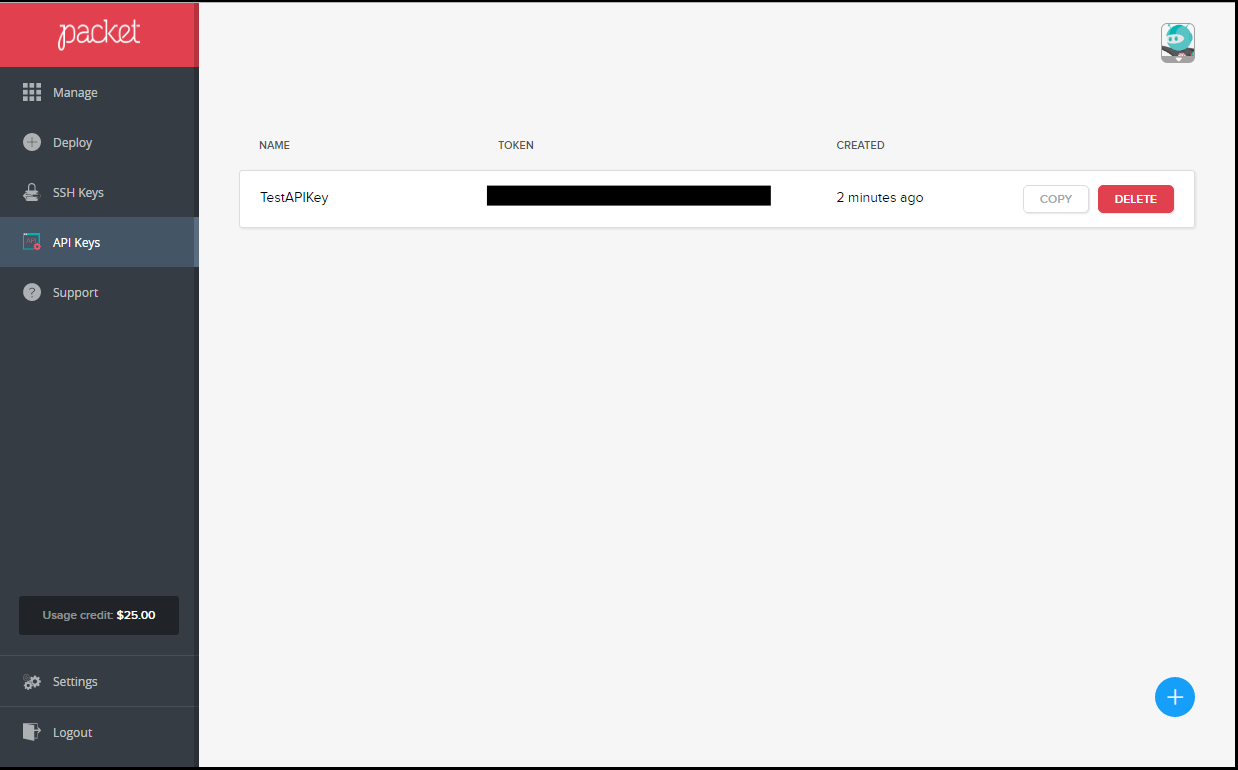
Last thing I did, was to add an API Key, so that I could try that as well.

The thing I really missed here, was some kind of "Help me" link, to the description of the API Interface. You can really easily find those by browsing to the Main Website, and going to Resources -> API Docs - however, it would be more User friendly to actually include a link on that page for the sake of getting the confused Admin faster to her/his/its goal ;). Especially, since they managed to include an "How to generate an SSH Key" link directly at the "Add SSH Key" section. By the way, the documentation for the API Interface, once found, is excellent - as well as the API Interface itself. I played a bit around with the Restful API and it seems as really every last bit of functionality is included in it, so, an real plus if you want to orchestrate your deployment a bit :).
Bonus Points: They even host different language bindings for their API, i.e. Python and Java on their Github Account: https://github.com/packethost/packet-python
The last thing to do, was to deploy a server - and that is quite easy:

Just enter the needed details, like the Type of Server you want to create, with what kind of OS and where should it be hosted. After clicking Deploy, the Server Deployment begins.

I created the server on 26.12.2016 at 16:45, thinking that not that many people should be playing around with Packet.net at that day. Complete deployment took 9 Minutes and 11 Seconds, so just over the advertised 8 Minutes - however, I still think that is more than ok :)!

The next thing you'll see, is the control panel for your server: It actual contains everything you need: From metering, to your IPs, Login credential - and even an root credential, as well as an Serial Console ("Console") and an Rescue OS ("Server Actions") as well as some reboot options and the usual. With the created SSH Key and the User root I was able to directly connect to my new ARMv8 Beast and started playing around.
First order of business was installation of Docker, however, I found out that the install script has an error (which I need to fwd to their github Repo soon), so I went with the lazy way and installed the usual docker.io Package from Ubuntu, which worked great. However, after installing and testing this, I run into issues by trying to get an ARMv6/ARMv7 Image from Resin.io running. However, an special created ARMv8 Debian Image worked.
Then, I went and tried some Multicore Stuff. I found a nice Python Pi Script on Gist and included some timeit stuff (https://gist.github.com/nmaas87/941b6934b51c90f462172ed63718b602).
Just to get an idea of how powerful that machine is: My main desktop, an AMD-8350 with "8" x 4 GHz Cores and 24 GB RAM went through 1.000.000.000 data points for their Monte-Carlo Simulation in 73.70 seconds. The Type-2A, with 96 Cavium ThunderX CN8890 @2GHz and 128 GB RAM did the same job in 34.14 seconds. Nice, not bad for an ARM :)!
In the end I also tried some speedtests in terms of their connectivity to the net, but the results were full of outliers, so I won't include them here.
4.) Conclusion
I think Packet.net does serve a quite unique purpose with their services: You get "raw" performance without any virtualization or sharing and for a good price point, if you would just need some special hardware for special occasions, like i.e. testing Docker or scientific experiments on huge multicore systems. They made "real" servers as easy to use as a VM and allowing to access this power via an really good documented API is a big plus.
I want to thank Packet.net for making this review possible :)!
And now, a nice picture of an fully working 96 Core ARMv8 😉

Gitkraken - your next Git Client
If you're in the NetOps/DevOps Teams, chances are high you need to develop code and use git. Well, on Windows Clients, I tended to use Atlassians Source Tree - however, that client became more and more buggy and unstable - unusable to say. Especially if I had to do an really big merge of my main to my deploy tag - it tended to crash most of the time.
So, without further ado: Enter Gitkraken. A nice, free, good looking and fast git client. Without dependencies.
Only downsides: It uses Electron - so it is basically a packaged Node JS server. It is - quite fast, however - and it does not need to install any other dependencies. The other "downside" is, if you want to use more than one GitHub Account, you need to pay for these kind of features.
However, as long as there is no "real" alternative to this product, I will remain using it :).