[Review] Packet.net

There are a lot of companies providing cloud services today: Amazons AWS, DigitalOcean, Heroku - just to name a few. Being an ARM-SoC-Fanboy however (well, I do too much RPi and Co stuff.. ^^'), I run into Packet.net - another cloud services provider - but with a little twist: Packet.net does offer Bare Metal Services. So you do not order "another VM", but the Hardware itself. They claim to have it provisioned within 8 Minutes (Source: https://www.packet.net/) and you also can use a ton of specialized stuff (some servers even got NVMe flash). But what really caught my attention, was the Type-2A server, an Cavium 96 Core ARMv8 @ 2GHz with 128 GB of DDR4 RAM and some SSD space - for 0,50 USD / hour (More Info here, here and https://www.packet.net/bare-metal/). So I decided to follow Packet.net on Twitter.

Full Disclosure: This was not a paid review, however, thanks to the guys over at Packet.net, I got 25 USD in Packet.net "currency" which I used to get an hand-on experience with their service - which I summed up in this review. (You can read the full discussion with the guys at Packet.net over on Twitter: https://twitter.com/nmaas87/status/808966172913733632).

With that being said, lets get started:

1.) Sign Up:
The process to register at Packet.net was fairly straight-forward: Just click on Signup, enter your Name, E-Mail and Password. However, at this stage you already had to enter details to either an Credit Card or directly link your details to an Paypal Account, which reminded me directly that this is going to be an paid service. Also, your Account will be tested by trying to transfer 1 USD from it. However, I wished that there would be a way to register without such details, as you can actually add members to a project afterwards - but not everyone in a corp should need to enter Credit Card Details imho (EDIT: This is possible after creating the initial Account via Inviting other ppl to the project). After this, you had to validate your E-Mail via the normal "get Mail, click Link"-Game. Then, after this was over, you had to enter your phone number and give them the sent code... And after this was over - you got the info that your account was suspended and needed to be verified manually. Ok, so I got another E-Mail within 20 minutes and got ask if I had an Social Media Account, so that they could line up my data with that... I sent them to my Twitter Account, and that checked out ok. However, that made the whole sign-up process come in in about 30 minutes. "You'll be spinning up servers in less than 8 minutes" - well, that looks kind of different :/. At that point in time, they actually got my Name, Mail, Phone Number, an valid payment account linked, as well as an Social Media Profile. Um, honestly I think - that is a bit too much.

2.) Console / Webinterface:
The Webinterface is quite nice and very usable, no problems there :)!

3.) Kicking the tires:
You actually create an project, link it to one of your payment accounts and get the possibility to add other Team Members via E-Mail Invite. Those people will be able to work within the project, however they won't be able to configure anything on the payment side, which is quite nice. I invited myself with another Mail Account and discovered, that I did not need to go through an "manual control" or payment service addition. However, I still had to "click that link" and do the SMS Code challenge. One nice thing to add here: You can actually use the same number for multiple accounts :).

Next thing to do, would be to add SSH keys. You can add Project SSH Keys, which are bound to "just the project", or personal SSH Keys which will be added to every server of every project you're a member of. 4096 Bit RSA worked fine, so.. Everything ok on that side. Additionally, you can add Two Factor Authentication (2FA) which I would personally use, if I were to use Packet.net on a real project.

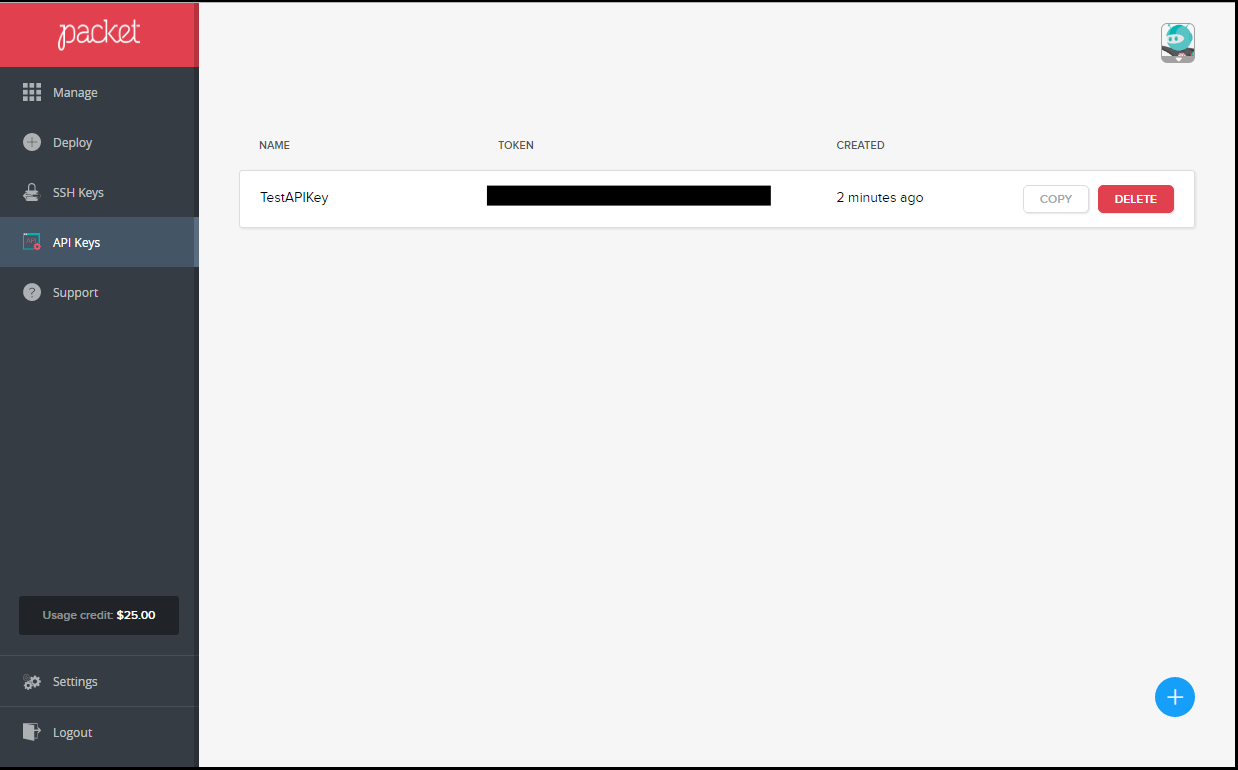
Last thing I did, was to add an API Key, so that I could try that as well.

The thing I really missed here, was some kind of "Help me" link, to the description of the API Interface. You can really easily find those by browsing to the Main Website, and going to Resources -> API Docs - however, it would be more User friendly to actually include a link on that page for the sake of getting the confused Admin faster to her/his/its goal ;). Especially, since they managed to include an "How to generate an SSH Key" link directly at the "Add SSH Key" section. By the way, the documentation for the API Interface, once found, is excellent - as well as the API Interface itself. I played a bit around with the Restful API and it seems as really every last bit of functionality is included in it, so, an real plus if you want to orchestrate your deployment a bit :).
Bonus Points: They even host different language bindings for their API, i.e. Python and Java on their Github Account: https://github.com/packethost/packet-python

The last thing to do, was to deploy a server - and that is quite easy:

Just enter the needed details, like the Type of Server you want to create, with what kind of OS and where should it be hosted. After clicking Deploy, the Server Deployment begins.

I created the server on 26.12.2016 at 16:45, thinking that not that many people should be playing around with Packet.net at that day. Complete deployment took 9 Minutes and 11 Seconds, so just over the advertised 8 Minutes - however, I still think that is more than ok :)!

The next thing you'll see, is the control panel for your server: It actual contains everything you need: From metering, to your IPs, Login credential - and even an root credential, as well as an Serial Console ("Console") and an Rescue OS ("Server Actions") as well as some reboot options and the usual. With the created SSH Key and the User root I was able to directly connect to my new ARMv8 Beast and started playing around.
First order of business was installation of Docker, however, I found out that the install script has an error (which I need to fwd to their github Repo soon), so I went with the lazy way and installed the usual docker.io Package from Ubuntu, which worked great. However, after installing and testing this, I run into issues by trying to get an ARMv6/ARMv7 Image from Resin.io running. However, an special created ARMv8 Debian Image worked.

Then, I went and tried some Multicore Stuff. I found a nice Python Pi Script on Gist and included some timeit stuff (https://gist.github.com/nmaas87/941b6934b51c90f462172ed63718b602).

Just to get an idea of how powerful that machine is: My main desktop, an AMD-8350 with "8" x 4 GHz Cores and 24 GB RAM went through 1.000.000.000 data points for their Monte-Carlo Simulation in 73.70 seconds. The Type-2A, with 96 Cavium ThunderX CN8890 @2GHz and 128 GB RAM did the same job in 34.14 seconds. Nice, not bad for an ARM :)!

In the end I also tried some speedtests in terms of their connectivity to the net, but the results were full of outliers, so I won't include them here.

4.) Conclusion
I think Packet.net does serve a quite unique purpose with their services: You get "raw" performance without any virtualization or sharing and for a good price point, if you would just need some special hardware for special occasions, like i.e. testing Docker or scientific experiments on huge multicore systems. They made "real" servers as easy to use as a VM and allowing to access this power via an really good documented API is a big plus.

I want to thank Packet.net for making this review possible :)!

And now, a nice picture of an fully working 96 Core ARMv8 😉

Gitkraken - your next Git Client

If you're in the NetOps/DevOps Teams, chances are high you need to develop code and use git. Well, on Windows Clients, I tended to use Atlassians Source Tree - however, that client became more and more buggy and unstable - unusable to say. Especially if I had to do an really big merge of my main to my deploy tag - it tended to crash most of the time.

So, without further ado: Enter Gitkraken. A nice, free, good looking and fast git client. Without dependencies.

Only downsides: It uses Electron - so it is basically a packaged Node JS server. It is - quite fast, however - and it does not need to install any other dependencies. The other "downside" is, if you want to use more than one GitHub Account, you need to pay for these kind of features.

However, as long as there is no "real" alternative to this product, I will remain using it :).

Cleaning Cache on Android >= 6.x (Apps won't work!)

As I am quite an Twitter Addict, I tend to surf a lot on that Social Media Site, blowing my Android Cache to unfriendly-sizes. In earlier days, I installed some random Cache Cleaner from the PlayStore, cleaned the Caches and directly uninstalled those Apps again, as they tended to be full of Ads. However, in recent days, I saw that most Cache Cleaners did not work - even though "the devs said so". How come? Well, I found my answer on the Github Repo of the android-cache-cleaner: "Starting with Android 6.0, CLEAR_APP_CACHE permission seems to be no longer available to regular applications and since this permission is required for cleaning of internal cache, Cache Cleaner is not able to clean internal cache on Android 6.0 and newer. However, cleaning of external cache is still supported." Well, cool thing. So most of those apps are useless as hell. But how to clean all the caches?!

TL;DR:
You do not need [an] app anymore if you are on Android 6.0 or newer. Just go to Settings & Storage -> USB -> Internal storage and click on Cached data in order to clear all the cache.

Source: https://github.com/Frozen-Developers/android-cache-cleaner/blob/master/README.md

Raspberry Pi Pixel - on your x86/x64

The guys over at the Raspberry Pi Foundation - in cooperation with the MagPi Team came up with a cool project: They ported the new "Pixel" desktop from Raspbian over to Debian, so you could use it on your normal x86/x64 machine. The DVD is included in the latest MagPi edition, however, you can also download the DVD from the Raspberry Pi Website, the link is in the article: https://www.raspberrypi.org/magpi/debian-pixel-mac-pc/

PS: Also the "root" directory of the pixel_x86 seems to be: http://downloads.raspberrypi.org/pixel_x86/images/

Raspberry Pi Remote Desktop

To use the RPi via Remote Desktop, different protocols and programs exist, i.e. VNC. Due to simplicity of use, however, I mostly chose XRDP, which works with the Microsoft Remote Desktop Tools. However, you must not install it via sudo apt-get install xrdp - as this will install it with realvnc and break xrdp (Package error which has not been fixed yet in the recent "Pixel" Release of Raspbian...).

Instead, use:
sudo apt-get install tightvncserver xrdp

As it will install tightvnc first and xrdp will use it after that as source. You can then use mstsc on your Windows Machine or any other RDP Viewer to access your RPis Desktop.

PS: Yes, the new Pixel Version of Raspbian does contain an VNC Server which can be enabled very easily via the GUI "Raspberry Pi Configuration" Tool, if you want to use VNC directly without RDP. However, I did chose this way, as the old VNC server installations never worked for me and I got used to this kind of "workaround" (more or less a "works-for-me"(tm) solution)

[Docker] Backup / Restore Images

Images should be a kind of "throw-away" format: You got your Dockerfile, and as soon as you need to run a specific container, you should just built it from scratch: All the latest security updates, software versions - great. However, sometimes you got a bit of specialized stuff which you want to backup for later use.

I found a good answer to that topic: http://stackoverflow.com/questions/26707542/how-to-backup-restore-docker-image-for-deployment


Backup:
docker save myusername/myproject:latest | gzip -c > myproject_img_bak20141103.tgz

Restore:
gunzip -c myproject_img_bak20141103.tgz | docker load

Nexus 4 Upgrade to CM 14.1 / Android 7.1 Nougat + Updates

[UPDATED 10.12.2016]
A little bit problematic, but... works in the end.

Warning: Bleeding Edge!
Will bootloop, you'll need to format your phone, it will break eggs, pcs, glass and burn down your house.
Comes with no support what-so-ever from my side.
You have been warned!

1.) Get all the files
CM: https://download.cyanogenmod.org/?device=mako (Latest version was: https://download.cyanogenmod.org/get/jenkins/187896/cm-14.1-20161202-NIGHTLY-mako.zip)
GAPPS: http://opengapps.org/ (ARM, 7.1 GAPPS, Picco Version)
TWRP: https://twrp.me/devices/lgnexus4.html (Download from: https://dl.twrp.me/mako)

2.) Flash TWRP
- Press Vol Down and Power Button to shut down the Phone.
- Press Vol Down and Power Button again to boot to the Bootloader
- Upload TWRP via fastboot: fastboot flash recovery twrp.img

3.) Flash and Install
- Boot to Recovery
- Delete all Files from your Phone
- Upload CM and GAPPS file via MTP to sdcard
- Flash CM, then GAPPS
- Clean Cache

4.) "Debug"
You would get an bootloop, if you would reboot now. According to http://androidforums.com/threads/twrp-bootloop-fix-after-update-ota.922585/ you need to go to the Terminal (or adb shell) and enter following commands:
dd if=/dev/zero of=/dev/block/platform/msm_sdcc.1/by-name/fota
(enter) - and then
dd if=/dev/zero of=/dev/block/platform/msm_sdcc.1/by-name/misc
(enter)

5.) Reboot
And you're good to go. However, somehow the update functions are bricked, so... check out the forums and bug reports:

http://forum.xda-developers.com/nexus-4/orig-development/official-cyanogenmod-14-1-nexus-4-t3507532/page7
https://www.cmxlog.com/14.1/mako
https://review.cyanogenmod.org/#/c/173328/

EDIT / REGARDING UPDATES:
Updates seem to be bricked because of some error in TWRP which sends Android 7.1 into a bootloop after EVERY update. So if you're updating via regular "Fullsized Images" from get.cm, you need to run the 4th Section / Debug EVERY time you update! However, you can get around that, if you use CyanDelta Updater (https://play.google.com/store/apps/details?id=com.cyandelta). Just install CyanDelta Updater on your phone, choose your CURRENT cm.zip (i.e. the one you installed your phone with, in this tutorial the cm-14.1-20161202-NIGHTLY-mako.zip) and let it index that. After this, it will try to find newer CM versions on the net and only download the delta, i.e. the changes to your current image. This will most likely break down your new 330+ MB download to an about 40+ MB download (which is nice!) - and after that, you can just install the update via the same app (actually it will ask you, just give it root rights and let it do its job, next reboot will take a while, but it works! :)). In any case, the TWRP Bootloop problem is solved with that, update downloads are smaller and everyones happy ;).

IMPORTANT: Best strategy before attempting ANY kind of update would be to make a full backup via TWRP and move it to a secure location (i.e. your pc harddrive) in case you brick your phone and need to restore it! At least one backup after your initial install (with all apps and stuff) should be made. It makes life so much easier in case something goes wrong :).

[Ubuntu / Proxmox] Hosting NFSv3 Server on Ubuntu for Proxmox Server

So, yesterday evening y0sh came to me with following problem: "I got an real nice proxmox server with loads of CPU and RAM - and nearly no storage left. And I got an small little Atom Server with loads of Storage - but not very useful as VM Host - and yes, they are within the same network". Ok, so: Lets create an NFSv3 Server on the Atom system and mount it as disk storage within Proxmox 🙂

# Atom Server (Ubuntu)
# Install NFS v3 Server
sudo apt-get install nfs-kernel-server rpcbind
# Create Shared Directories
sudo mkdir -p /var/nfsshare
sudo chmod -R 777 /var/nfsshare
# Configure Server
sudo vi /etc/exports
# Insert the line into exports, with the IP Address of your NFS Client / Proxmox Server
/var/nfsshare 192.168.1.111(rw,sync,no_root_squash)
# save and exit, fine tuning:
sudo vi /etc/default/nfs-kernel-server
# change the line RPCMOUNTDOPTS to
RPCMOUNTDOPTS="--manage-gids --no-nfs-version 4"
# to use nfs v3 ...
# reload the nfs exports...
sudo exportfs -r
# ...or restart the server
sudo /etc/init.d/nfs-kernel-server restart
# show all share directorys
sudo exportfs -v

# Mount NFS in Proxmox
Go to Datacenter, Storage, Add, NFS
IP:

[Python / QL-570] Using Brother QL Printers via Python

I have been building an complete Invoice / Cashier system for Cafés in my spare time for quite some time. It consists of an server, running the web app, an laptop to use as the real cashier system, multiple Android Phones as a way for the waiters to enter their orders and two Raspberry Pis with Brother QL-570s as Invoice Printers. One of those is set at the counter, printing the "normal invoice", the second one is located at the kitchen and got some special routing logic, so that it only recieves the items actually produced in the kitchen. However, as I was using these special kind of printers, I was bound to use the printer-ptouch drivers... and yeah, they are *kind of* buggy. Buggy in that way, that, after installing them with cups and hacking your paper media in there - they will just stop working from time to time. Without further warning. They will stop printing just somewhere in the middle of the job. I really tried all options available to me now - and was now keen on finding *other* kinds of solutions. And after two days of searching, I stumpled upon this master piece: https://github.com/pklaus/brother_ql. Mr. Philipp Klaus did actually dump the whole cups and printer server stuff and directly converted png files into the needed binary code for the printer. And not only the QL-570, but other types as well. I really recommend checking out his code and trying his way on printing - its a huge timesaver, especially on embedded devices like the Raspberry Pi :)!